
Xubuntu at Computer Reach
The Xubuntu team hears stories about how it is used in organizations all over the world. In this “Xubuntu at..” series of interviews, we seek to interview organizations who wish to share their stories. If your organization is using Xubuntu and you want to share what you’re doing with us please contact Elizabeth K. Joseph at lyz@ubuntu.com to discuss details about your organization.
Last month we started a dialog with Kevin Driscoll, PC/Linux Technical Consultant, and Dave Sevick, Executive Director, of Computer Reach to learn more about how they’re using Xubuntu in their organization. The following is an exchange we had with Kevin over email, huge thanks to him for taking the time to share details about their work with us.
Can you tell us a bit about yourself and the work that Computer Reach does?

Computer Reach is a volunteer organization in Pittsburgh that refurbishes computers for use by non-profits. Local companies, school districts, and individuals donate their used computers to us. We recondition them and use imaging software to put standardized software on them, mainly for educational use. The operation started in 2001 doing just Macs but for the past several years has a strong PC-Linux operation. More about Computer Reach at computerreach.org.
What influenced your decision to use Open Source Software in your organization?
The cost and complexity of licensed software made open source software the only real solution for us. Funding is low and the price point for new equipment keeps falling, making it more challenging to sell (or fund) used computers. LibreOffice and Linux are the main open source software that we use, but it is the core of what makes us an educational operation as well. Our volunteers are not always technically capable. Learning how to use software is key to attracting in new volunteers. Since they can freely download and use any of the open source software that they learn to work with while helping Computer Reach, it is a great enabler for them. As a further benefit, the fact that volunteers that come to help improve their own capabilities and thus their work situation helps us raise funds from those willing to underwrite community education and career development.
What made you select Xubuntu for your PC deployments?
Initially, Edubuntu was the Linux distribution that was used because of bountiful online resources and the included array of software for school-age children. More recently, in order to be able to run similarly on computers from 5-15 years old, we had to choose a desktop environment that was intuitive but also light-weight. Xfce was the environment I thought lent itself best to efficiency as well as features. We have used it to put together a desktop that is equally intuitive to Mac users as it is to Windows users, since most users of our computers are coming to Linux from one of those platforms.
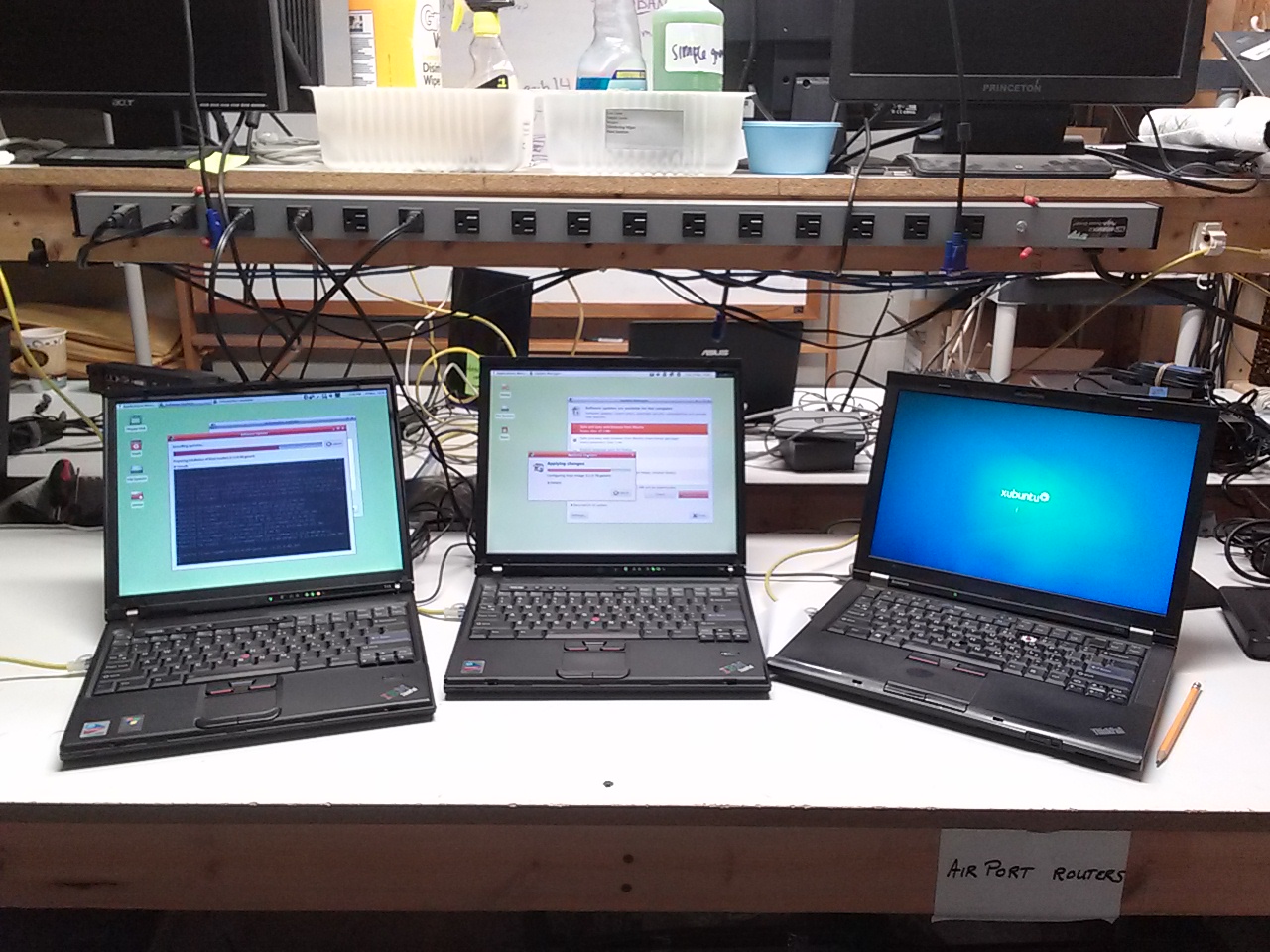
Can you tell us a bit about your Xubuntu setup?
We have three images which help us cover PC’s as old as 15 years. Most of our computers are 5-10 years old and run what we call “32x” (32-bit Xubuntu). Computers with 64-bit processors and more than 2GB RAM get “64x” (64-bit Xubuntu), while older computers get “32Lite.” Both 32x and 64x are based on Xubuntu 14.04 LTS so we can expect updates through early 2019. (Ed. Only packages shared with Ubuntu will receive updates, Xfce and other components are only supported until 2017.) “32Lite” is based on Ubuntu 12.04 LTS since it is the last version with clear support for non-PAE motherboards often present in older systems.
All of the systems use the Whisker Menu and a panel to launch common apps. LibreOffice and the Educational Desktop are on all systems as well. We put Wikipedia for Schools (offline) on the “x” versions so users without internet access can still used that offline version like an encyclopedia. (It is not on the “Lite” version so the system can run on machines with as small as 10GB hard drives).
We create a supervisory user account, a standard one, and enable the guest account so the organization that gets the computer can decide what level of control they want their users to have.
Is there anything else you wish to share with us about your organization or how you use Xubuntu?
Thanks to the help of many past local volunteers, we have a system that lets us image Linux onto just about any PC made in the past 15 years. As mentioned before, we only have 3 images that we use. If you think about the tremendous variety of brands and models of computers made in that time frame, it is astounding how many combinations of equipment our (often non-technical) volunteers run into. Yet after a quick PXE-boot, Clonezilla automated script runs on those computers, it will reboot into a completely operational Linux environment is amazing! Xubuntu is so resillient to be able to run, without prompt for drivers, on so many different kinds of PC’s! Now we are trying it on some Macs as well. Who knows how for we can go with it?
There is lots more information on our website (including the News page) and social media sites – Twitter, Facebook and YouTube – with examples of where our computers are in use as well as our volunteers doing the work.
To learn more, download their Edubuntu-Xubuntu 14.04 Quickstart Guide (14M).